 Blurwise
By hand, in a video editor
In an editor you create a mask for each face, apply a blur inside it and track it through the shot. Many editors can track a mask automatically, but someone still has to set up one mask per person, check it and fix it whenever the tracking slips: when the person turns, walks behind someone or leaves the frame.
The advantage is total creative control and staying in the tool you already edit with. The cost is time, which grows with each extra face and each extra minute, and the risk that a face visible for a few frames goes unnoticed.
Automatically, with Blurwise
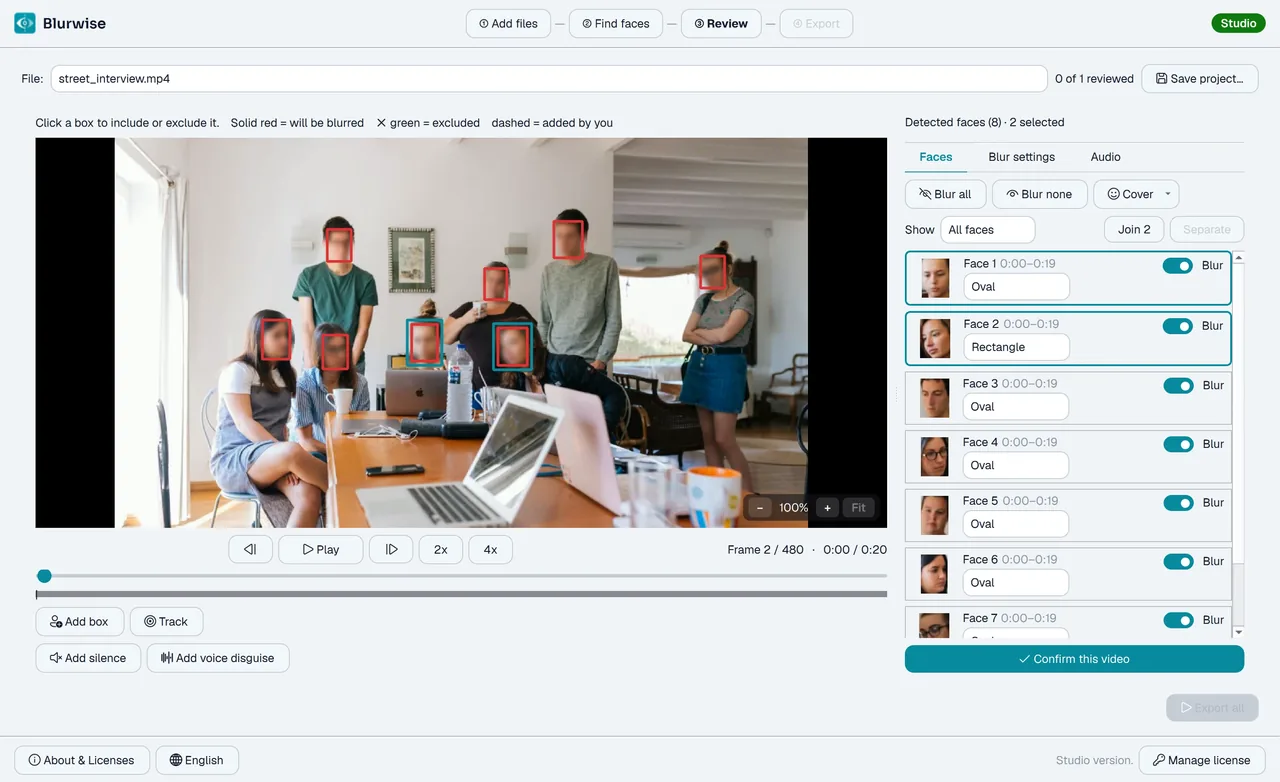
Blurwise inverts the work: it finds and tracks every face on its own, and you only decide. Each person appears as one row for the whole video, blurred by default; you leave visible the ones who should be, and the preview shows the real result.
- A crowd is handled in one click with “Blur all”, or by selecting many rows together.
- Faces seen only briefly, or detected with less certainty, are marked “Check”.
- If someone disappears and comes back as a new row, you join the two and the gap is covered.
- What the detector misses can be drawn by hand and tracked, as can plates and documents (Pro and Studio).
Side by side
What each approach is like for a typical job: a few minutes of footage with several people in it.
Finding the faces
Masks in a video editor: You do, frame by frame
Blurwise: Automatic, every face in every file
Following them through the shot
Masks in a video editor: One tracked mask per face, fixed by hand when it slips
Blurwise: Automatic; lost faces can be joined or drawn
Time with a crowd
Masks in a video editor: Grows with every person
Blurwise: About the same as with one person
Faces visible for a moment
Masks in a video editor: Easy to miss
Blurwise: Detected and flagged to check
Creative control over the look
Masks in a video editor: Complete
Blurwise: Four cover styles, intensity and margin
Voices and audio
Masks in a video editor: Separate audio work
Blurwise: Voice disguise and silencing (Studio)
Learning curve
Masks in a video editor: That of a professional editor
Blurwise: Three steps: add, review, export
The two work well together: blur the faces in Blurwise, then edit the anonymised video in your editor as usual.
Frequently asked questions
Can I still decide who stays visible?
Yes, that is the point of the review: every detected person is a row you switch between blurred and visible, for the whole clip, with a live preview of the result.
What if the detection misses someone?
Faces it is unsure about are flagged “Check”. A face it missed altogether can be added with a box you draw, which then follows the person (Pro and Studio).
Will it fit into my editing workflow?
Blurwise exports an MP4 (H.264) that any editor opens. Many people anonymise first and edit afterwards, or export the finished cut and anonymise that.
Read the step-by-step guide, with a screenshot of every stage →