 Blurwise
Online services
An online service needs nothing installed: you open a web page, upload the video and download the blurred version. For a short clip, now and then, it is the quickest way to start.
The price of that convenience is the upload. Your footage, with every face still visible, is copied to the provider’s servers and processed there. How long it is kept, in which country and who can reach it depend on that provider’s terms. For footage of other people, especially under the GDPR, that is a transfer you have to be able to justify.
An app on your computer
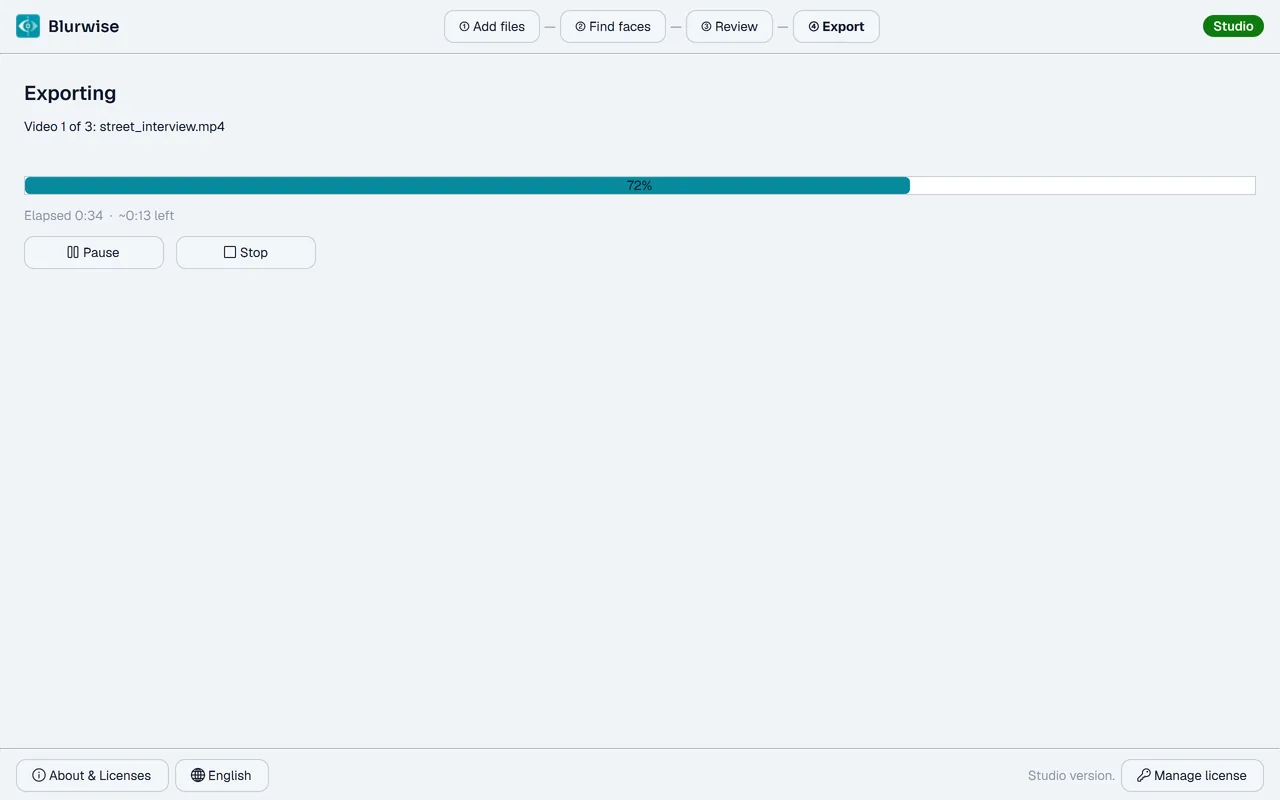
A desktop app such as Blurwise is installed once, then works without a connection. Detection, review and export all happen on your PC, and your graphics card speeds them up when you have a suitable one. A two-hour recording does not have to travel anywhere before the work can begin.
The trade-off is that it runs on one operating system: Blurwise is for Windows 10 and 11, with an Android app for photos and short clips.
Side by side
A general comparison: online services differ from one another, so check the terms of any specific one.
Where the video is processed
Online service: On the provider’s servers
Blurwise (local app): On your PC, even offline
Identifiable footage leaves your computer
Online service: Yes, it is uploaded
Blurwise (local app): No
Waiting before the work starts
Online service: The upload, then the download
Blurwise (local app): None
Long or 4K recordings
Online service: Often limited by file size or plan
Blurwise (local app): No limits on Pro and Studio
Choosing who stays visible
Online service: Varies by service
Blurwise (local app): Face by face, with a real preview
How you pay
Online service: Typically subscriptions or credits per minute
Blurwise (local app): Free version, or a one-time licence
Installation
Online service: None
Blurwise (local app): Once, on Windows 10 or 11
Choose an online service if you blur a short clip once in a while and the people in it would not mind the upload. Choose a local app if you handle footage of other people regularly, long recordings or material you cannot hand to a third party.
Frequently asked questions
Does Blurwise need an internet connection?
Only to activate a licence and, if you ask, to check for updates. Detection, review and export work with no connection at all.
Is a local app slower than a cloud service?
Not necessarily. There is no upload or download, and on a PC with a suitable graphics card detection and export run up to 5 times faster than on the processor in our tests. A very old computer will take longer on long videos.
Can I try it before paying?
Yes. The Free version has no time limit and no watermark (one video at a time, up to 2 minutes and 1080p), and a 14-day Studio key unlocks everything, with no payment details needed.
Read the step-by-step guide, with a screenshot of every stage →